

When opening MS Word or PowerPoint on a Mac, you may see the error message:
Run-time error ‘53’:
File not found: /Library/Application Support/Adobe/MACPDFM/MacPDFM.framework/Versions/A/MacPDFM
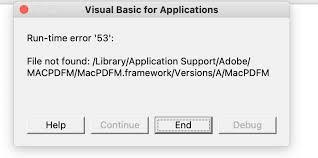
To stop this error from coming up:
(Please keep in mind that with different versions of software the wording may change, but the steps are broadly the same)
- Open Word or PowerPoint
- In the Menu Bar at the top of the screen, select Tools → Templates & Add-Ins
- Unless you have explicitly added some Templates and Plugins yourself, you should only see one item, which is the broken Add-In causing the issue
- Select the broken Add-In and press on the minus button to remove it, which should resolve the issue. If the minus button is greyed out, proceed to the next step.
- You should see a Full Path, i.e. where the Add-In is saved on your disk. Make a note of this path.
- Open a Finder window, in Menu Bar click Go → Go To Folder… (⌘⇧G) and enter the Full Path from the previous step.
- Delete the file mentioned in the Full Path and restart the application. N.B. Be careful to not delete any other files, as you risk breaking other things.

